ChatGPT becomes more useful when it can work with current email, calendar, contacts, and identity context. Helix gives it that context through a remote MCP connector while keeping the actual authority to send, schedule, and revoke access inside a visible control plane.
This guide walks through the practical setup: create or choose a Helix identity, copy its connection link, add it in ChatGPT, then try prompts that are useful on day one. ChatGPT custom MCP connectors require a plan that exposes the Connectors developer surface, so confirm your workspace can add custom connectors before you start.
1. Copy your Helix connection link
Open Helix Deploy, select the ChatGPT tile, and copy the connection link for the identity you want ChatGPT to use. Treat the link like an access credential: it represents the scopes and approval rules on that identity, not a generic API key for your whole account.
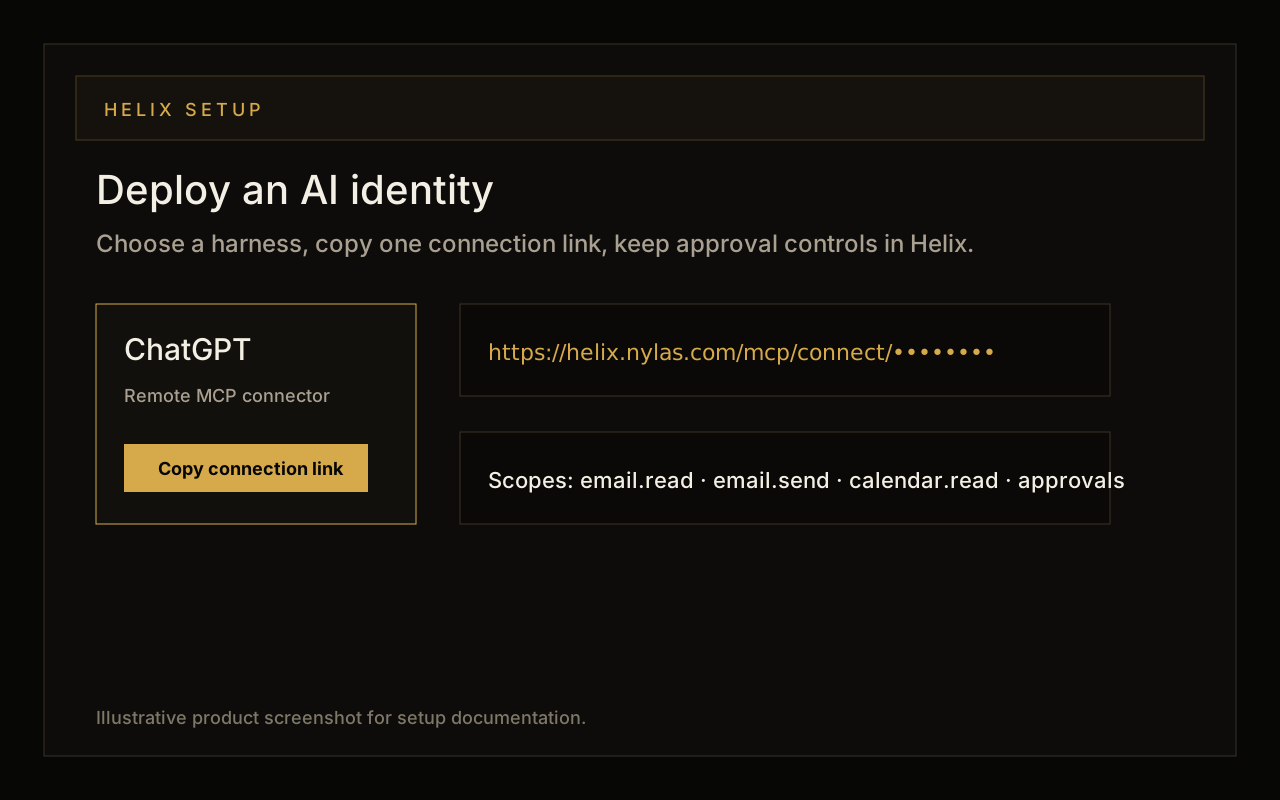
- Use a dedicated identity for the job, such as founder inbox, recruiting coordinator, or support triage.
- Review the scopes before connecting: email, calendar, contacts, identity context, and whether send actions require approval.
- Keep the Helix tab open so you can verify the connection and watch pending actions later.
2. Add Helix in ChatGPT settings
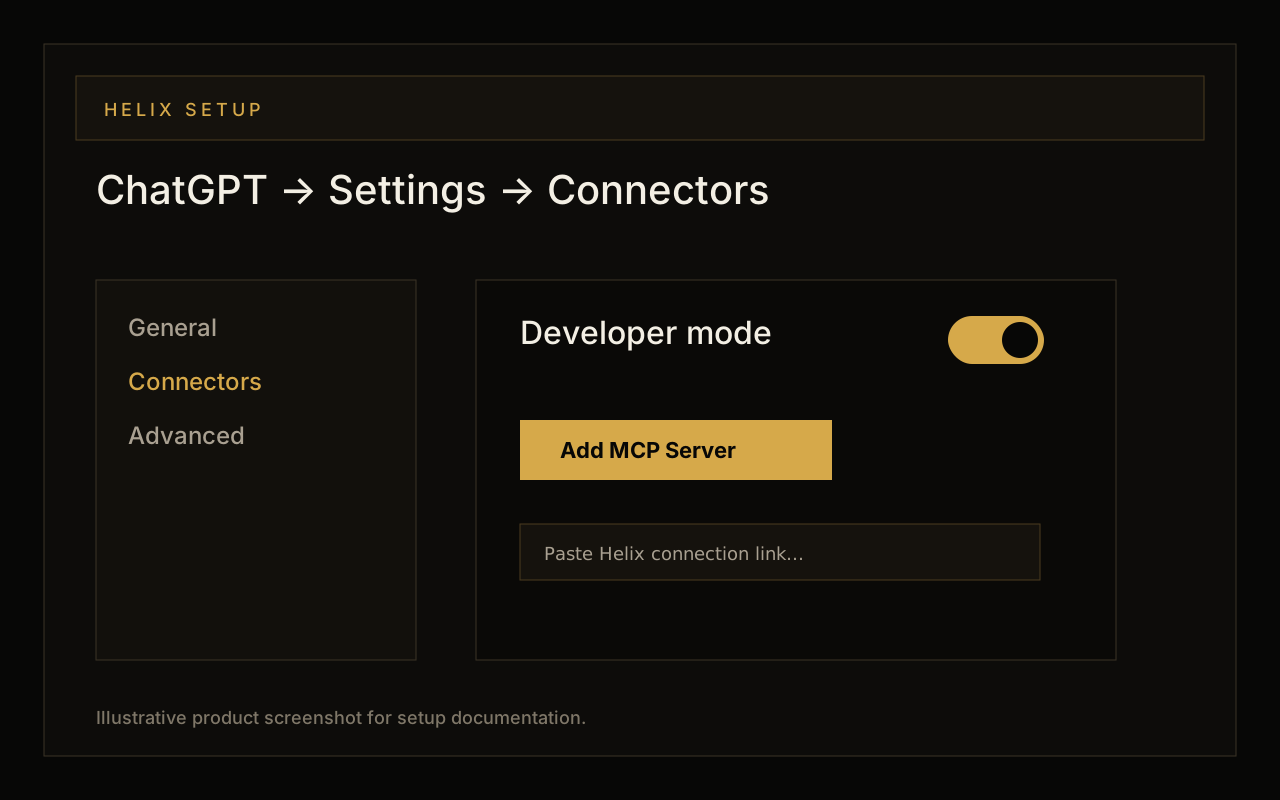
In ChatGPT, open Settings, then Connectors. Turn on Developer mode in the advanced connector area, choose Add MCP Server, name the server Helix, and paste the connection link from Helix. When ChatGPT asks you to approve the connector, approve the grant for the identity you selected.
3. Verify from both sides
Return to Helix and check the deploy or now view for a connected ChatGPT client. Then start a new ChatGPT conversation and ask it what Helix tools are available. A healthy setup should expose narrow tools for email, calendar, contacts, identity context, and approval-aware actions rather than a single unlimited mailbox dump.
Prompts to try after connecting
- Review today’s inbox and rank the three threads I should handle first. Explain the reason for each ranking and cite the message that triggered it.
- Draft replies for investor-critical or customer-critical messages, but leave every external send pending approval in Helix.
- Give me a one-minute daily briefing: urgent emails, calendar conflicts, stale follow-ups, and anything waiting on my decision.
- Find emails from prospects who asked for pricing this week, summarize the buying signal, and draft a concise follow-up for each one.
- Look at my calendar and inbox together. Which meetings need prep notes, and which emails should I read before each meeting?
What ChatGPT can do with Helix
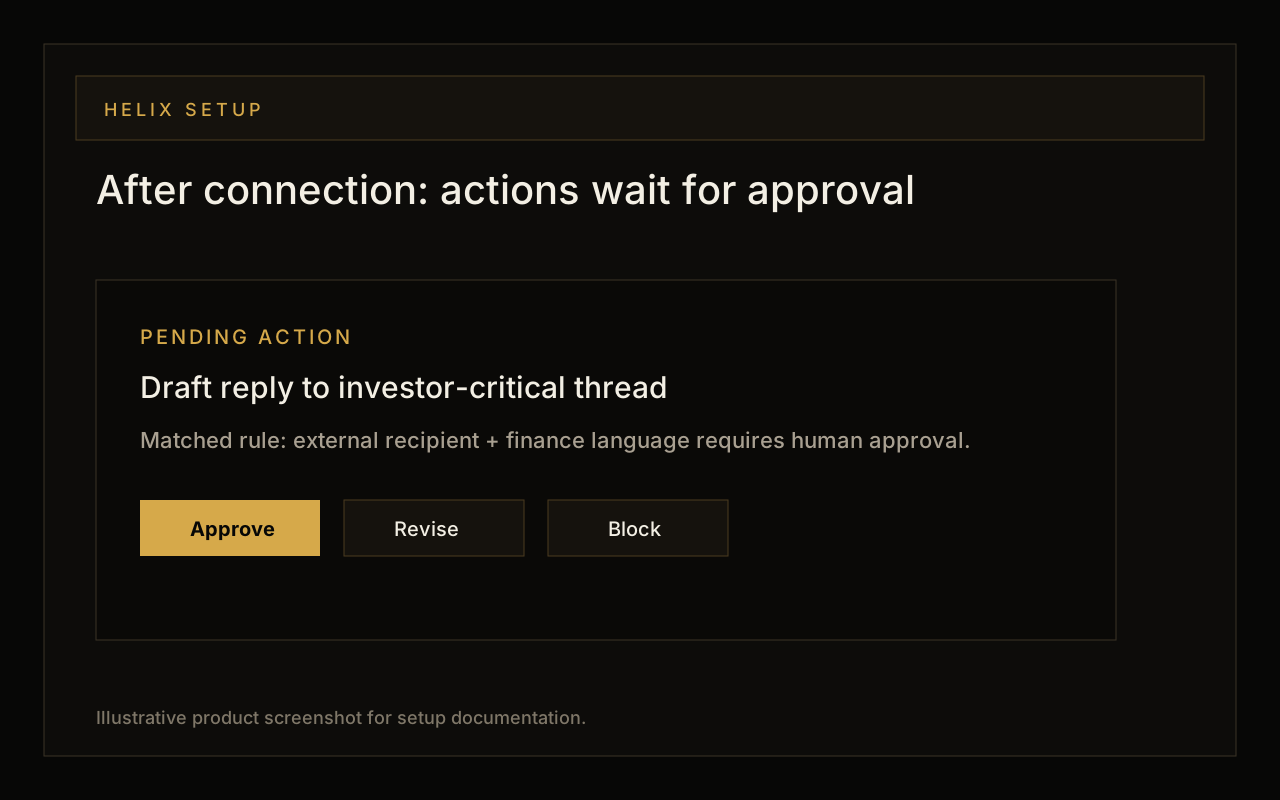
The most valuable workflows combine retrieval with a proposed action. ChatGPT can summarize a thread, infer the next step, draft a response in the context of the identity, and ask Helix to create a pending action. Helix then shows the policy that matched, the source context, and the approve, revise, or block controls.
Troubleshooting
- If Add MCP Server is missing, your ChatGPT plan or workspace may not expose custom connector developer mode.
- If OAuth or approval closes immediately, allow pop-ups for ChatGPT and Helix, then restart the connector flow from Helix Deploy.
- If ChatGPT can read but not act, check whether the identity is configured for read-only scopes or whether sends are intentionally routed to approval.
- If a tool returns too much or too little context, adjust the Helix identity scopes and source filters rather than relying on prompt instructions alone.